Steps to remove a User:
- Log into Articulate 360 – Sign in as an admin.
- Go to the Admin Console – Click on your profile in the upper-right corner and select Manage Team.
- Navigate to the Seats Tab – You’ll see a list of current team members.
- Select the User: Hover over the user and click the X. Complete the process by selecting a team member as the new owner of the user's shared content and choosing whether or not you want to transfer the content.
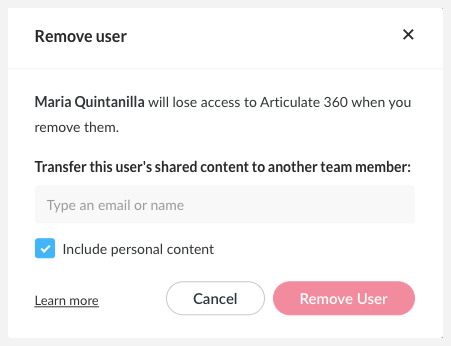
If the user is an admin you can also chose to remove the admin access at the same time
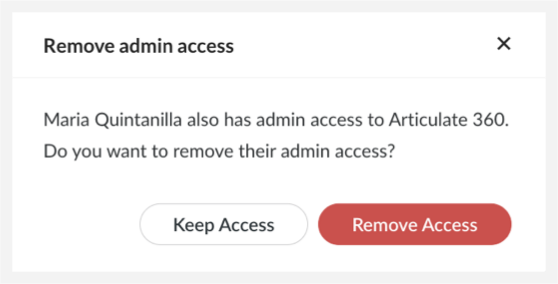
Remove an Admin
- Log into Articulate 360 – Sign in as an admin.
- Go to the Admin Console – Click on your profile in the upper-right corner and select Manage Team.
- Navigate to the Admin Tab – You’ll see a list of current team members.
- Select the Admin: Hover over the admin and click the X. You will be prompted to confirm the deletion.
If you like to remove or switch the Account Owner please submit a ticket and we will help you with the process.
Please also refer to Articulates official documentation for more information.